
Drivers
Managing the partner's drivers: applications, online statuses, car classes, blocks and documents. In the menu: Drivers («Водители»).
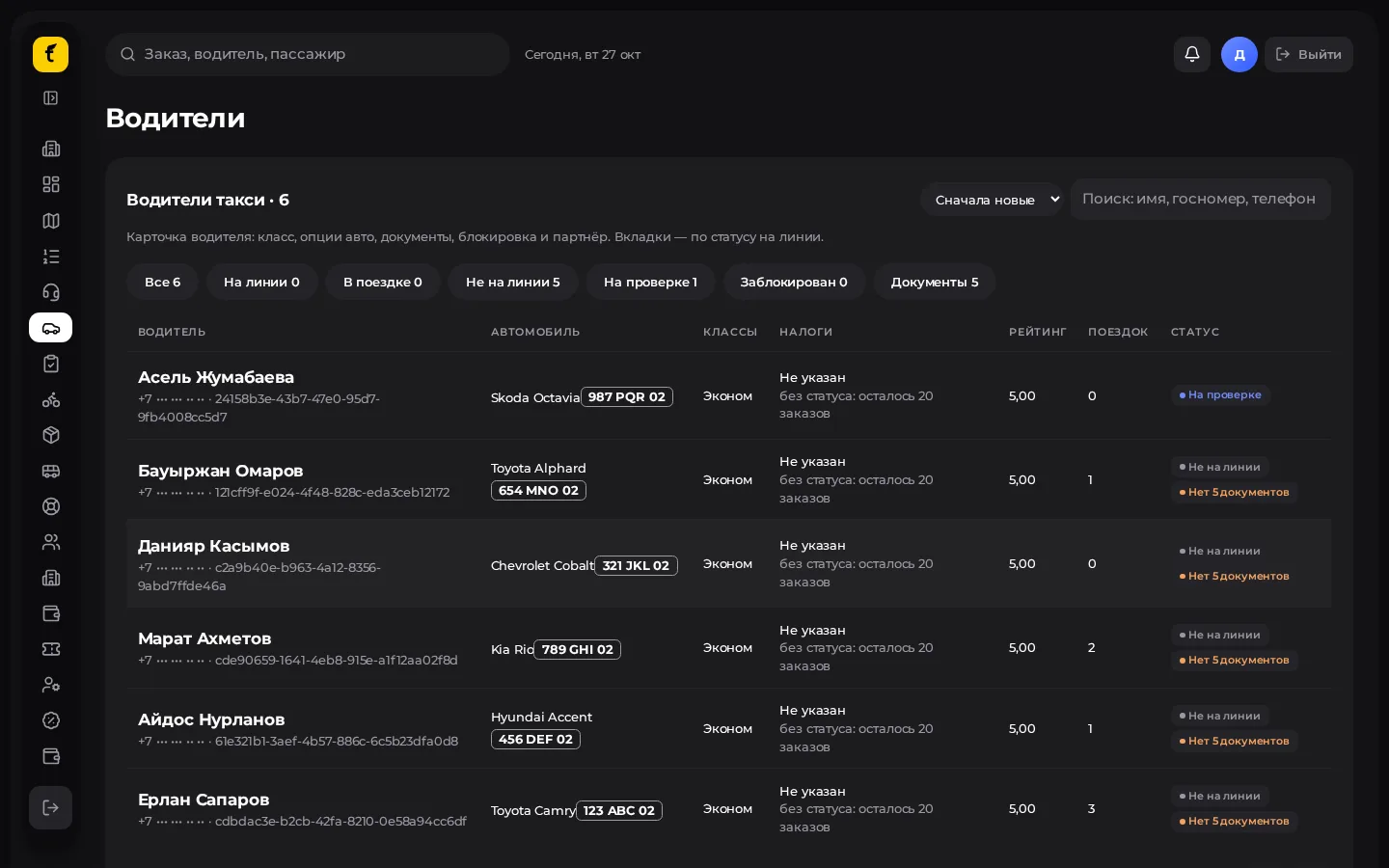
List and search
- Menu → Drivers («Водители»).
- Search by name, plate number or ID.
- Filter by status (online / busy / offline), class, block.
- Click a row to open the driver card.
Applications and approval
New drivers often come through Driver applications («Анкеты водителей»), a separate menu item if enabled.
- Open the application, check the data and documents.
- Assign a class (economy / comfort / …) according to the partner's policy.
- Approve — the driver can then go online in the app.
- If you reject, give a reason (using the form fields).
Documents
Expired or rejected documents are usually highlighted with a badge on the card. Do not let a driver go online with critical document problems.
Driver card: typical actions
| Action | Purpose |
|---|---|
| Change class | A different tariff class for the car |
| Block | Take the driver offline temporarily or permanently |
| Modes (taxi / delivery) | If both modules are connected |
| Intercity packages | Assign / check route packages (intercity module) |
| Order history | Resolving disputes and quality issues |
Blocking
- Choose block on the card.
- If the driver is currently on an order, the system may warn you that blocking will cancel it — confirm only if you mean it.
- Unblock in the same place once the reason is resolved.
Online on the map
Free and busy drivers are also visible in Dispatch. Use the Dispatch map to assign orders; use this section for staff management.
Driver onboarding checklist
- The application is complete, photos/documents uploaded.
- Class and modes are set.
- The driver installed the app, signed in in driver mode and went online.
- A test order was completed (via Dispatch or the app).