
Quick start
In short: how to sign in to the partner cabinet and where to start on your first day.
Who this documentation is for
This documentation is for Tulpar GO partners — companies that manage their drivers, orders and prices in a city. The platform (servers, maps, apps) is run by Tulpar GO; day-to-day operations in the city are run by the partner.
Signing in
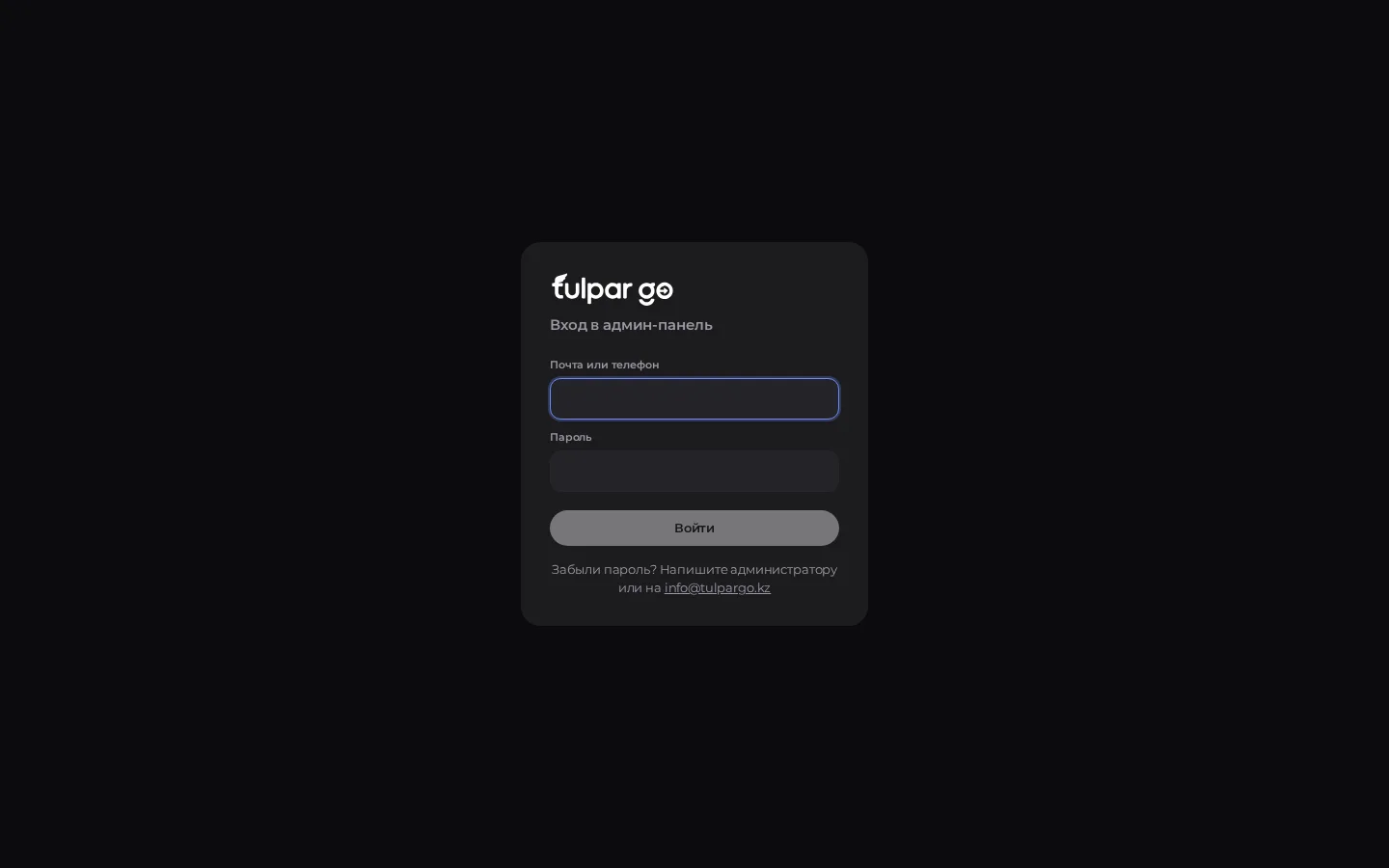
- Open the admin panel address you received when you were connected (usually the
adminsubdomain of the Tulpar GO domain). - Enter the login and password of your partner account.
- If asked, confirm the sign-in with a second factor (code), if it is enabled for your account.
- After signing in, the Partner cabinet («Кабинет партнёра») opens — the starting point of the menu.
Access
Do not share partner administrator credentials with dispatchers in a group chat. Create separate accounts with the dispatcher role for operators.
What you will see in the menu
The menu items depend on the connected modules and your role. A typical partner set:
| Section | Purpose |
|---|---|
| Dispatch («Диспетчерская») | Create an order from a call, assign a driver, watch the map |
| Orders («Заказы») | History and statuses of all partner orders |
| Drivers («Водители») | Applications, statuses, blocks, classes |
| Packages («Пакеты») | Ride packages for drivers |
| Tariffs («Тарифы») | Class prices and the partner commission |
| Delivery («Доставка») | City delivery |
| Intercity («Межгород») | Intercity trips and requests |
| Finance and balance («Поездки и финансы») | Summary, platform invoices, balance |
| Settings («Настройки») | Cabinet and staff settings |
First-day checklist
- Check the partner card (legal entity, city, contract fields) in the cabinet.
- Set up or review tariffs by class.
- Prepare ride packages if you sell them to drivers.
- Add staff (admin / dispatcher) and check their access — see roles.
- Approve your first drivers and make sure they can go online in the app.
- Place a test order through Dispatch and take it all the way to completion.
Next
- Learn about roles
- Go through the cabinet sections
- Check the FAQ